Appearance
Experiment Setup for Product Pages
Create an Experiment for Product Pages
An experiment is where you define what you’re testing.
Here, you’ll set up an experiment for the product pages you want to optimize.
- Go to the Experiments section.
- Click Create Item.

Fill in: 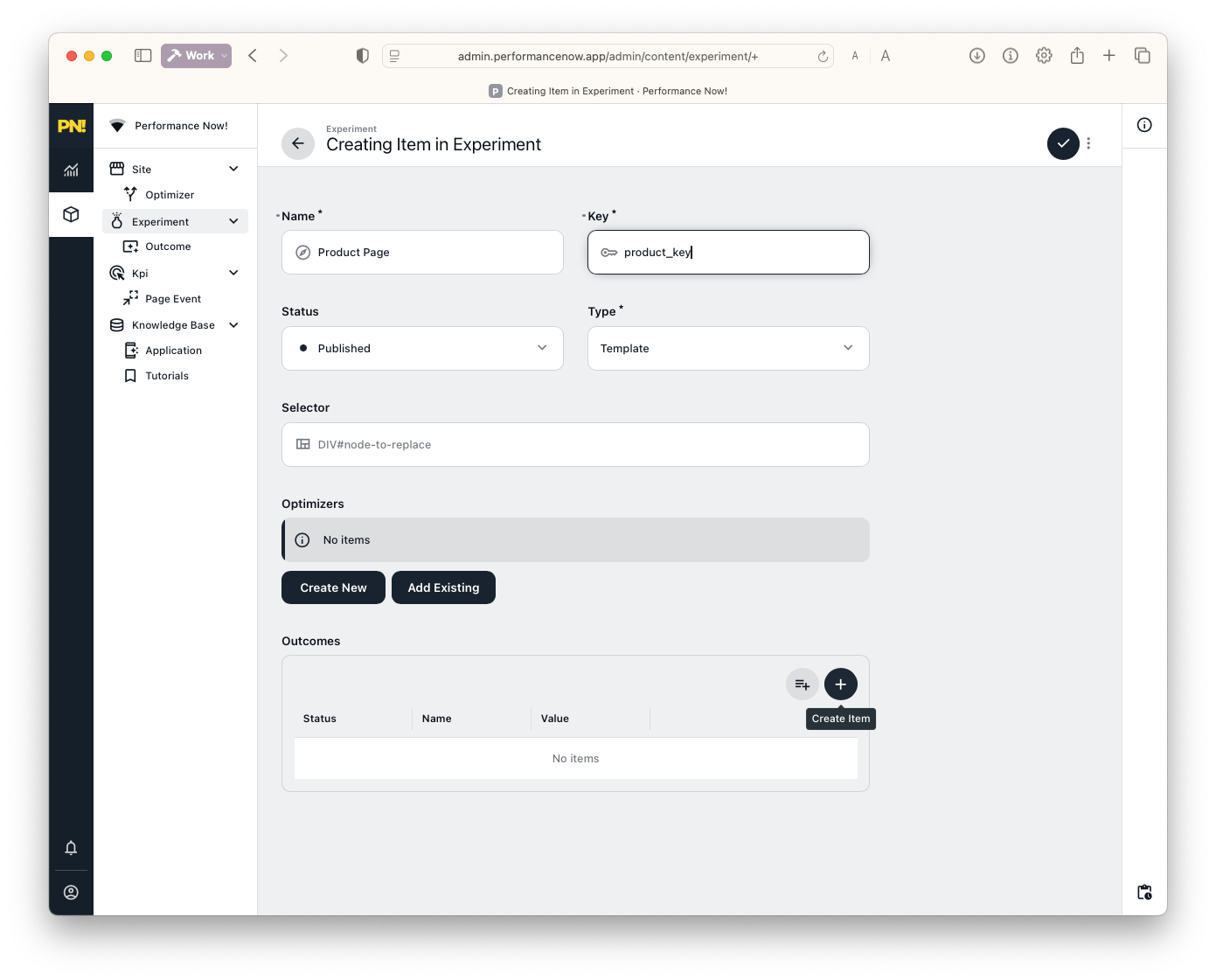
- Name:
Product Page(or any label) - Key:
product_key(must match optimizer key above) - Status: Published
- Type: Template
Add Outcomes (Products to Test)
Outcomes are your candidates: the actual product URLs you want to split-test.
In the Outcomes panel, click the black "+" button (not the gray one).
For each product:
Page 1:
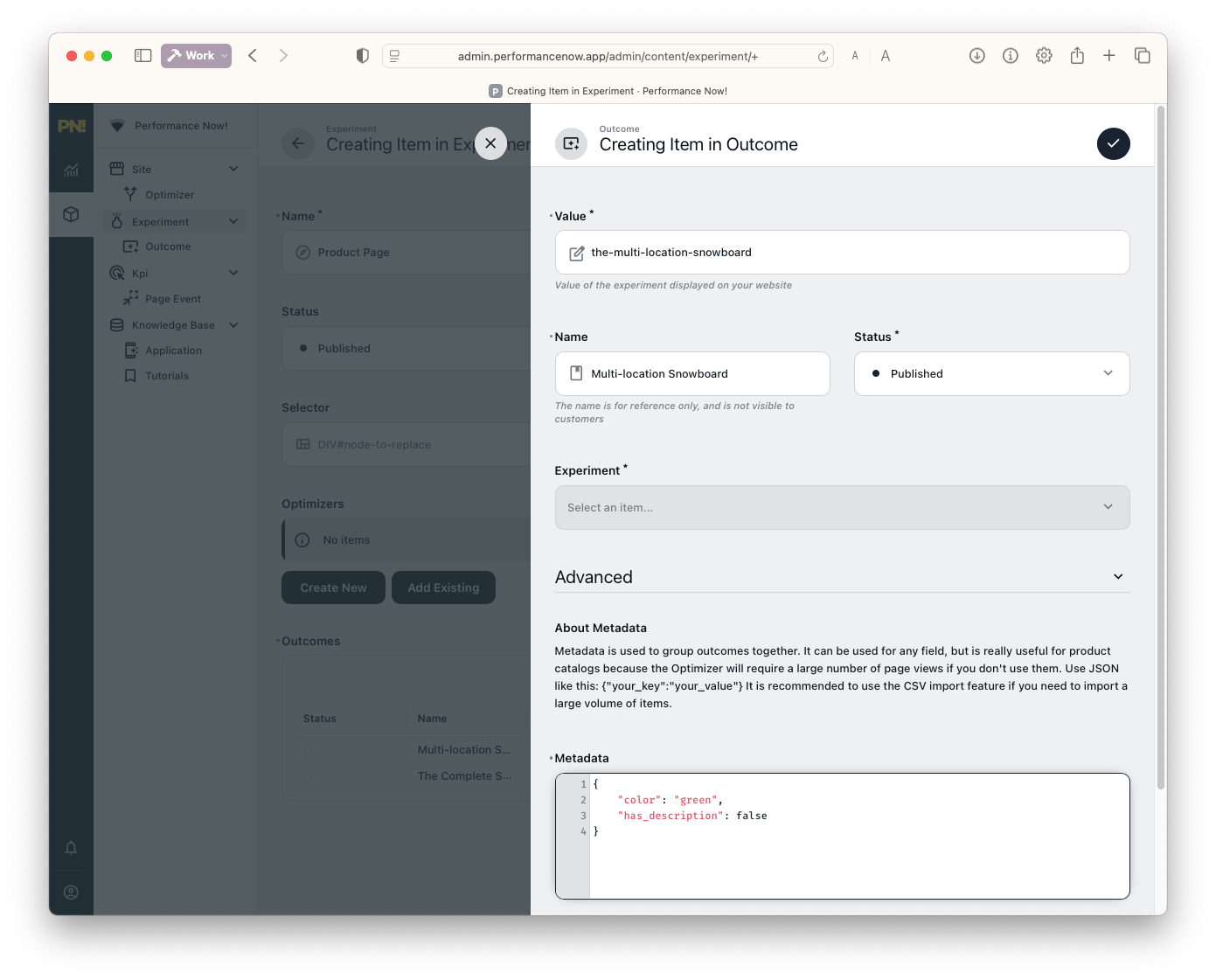
- Value:
the-multi-location-snowboard
(must exactly match the product key in Shopify, or you’ll get a 404 error) - Name:
Multi-location Snowboard - Status: Published
- Metadata (optional but powerful):json
{"color": "green", "has_description": false}
Learn how metadata can help you achieve better performance using Product attributes.
Page 2:
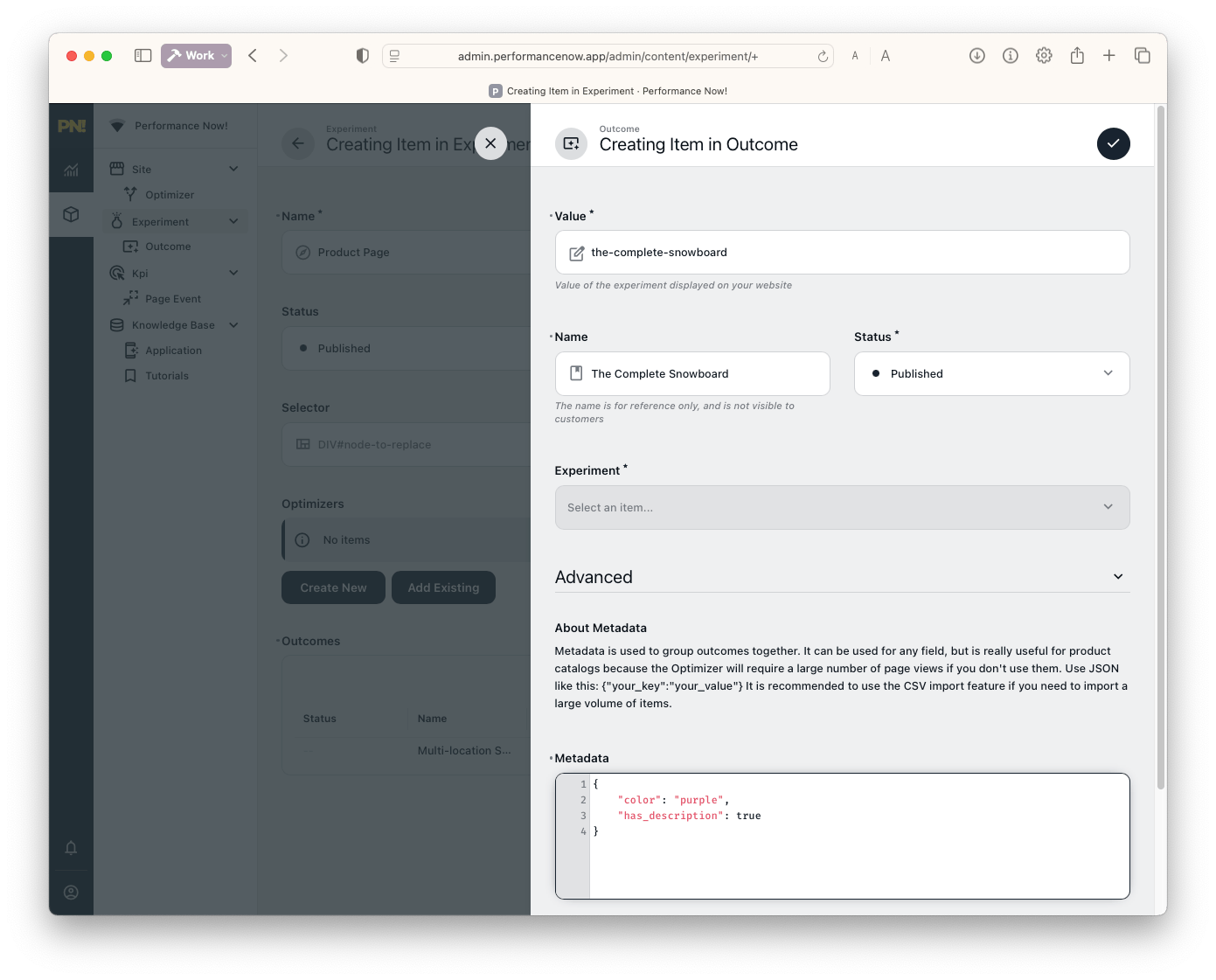
Value:
the-complete-snowboardName:
The Complete SnowboardStatus: Published
Metadata (optional):
json{"color": "purple", "has_description": true}
Save the experiment
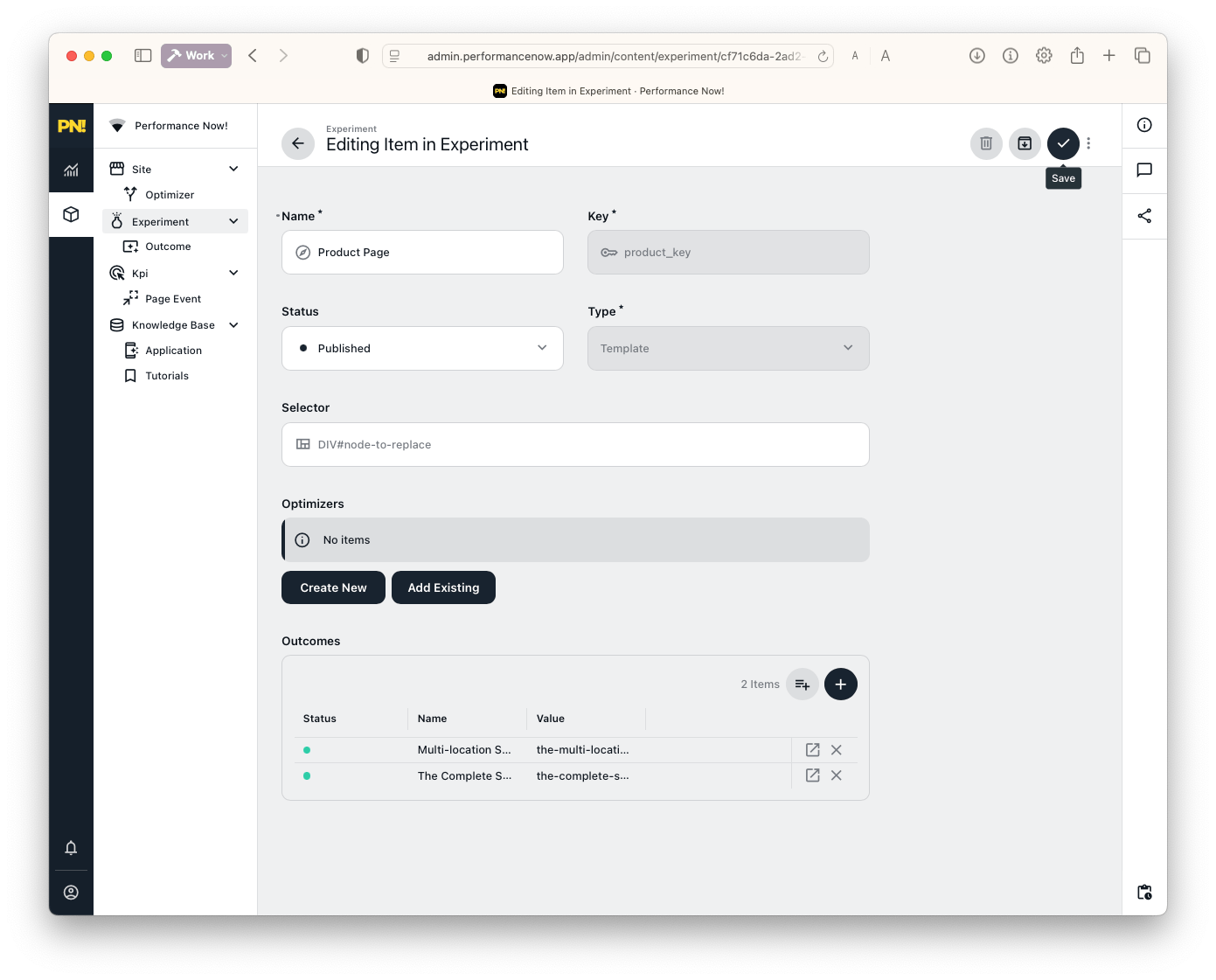
Get the Click Command & Test the Setup
Go to the dashboard, open the Get Started section.
Select the new Optimizer you created for product pages from the dropdown menu.
Click the copy icon to copy the experiment’s click command.
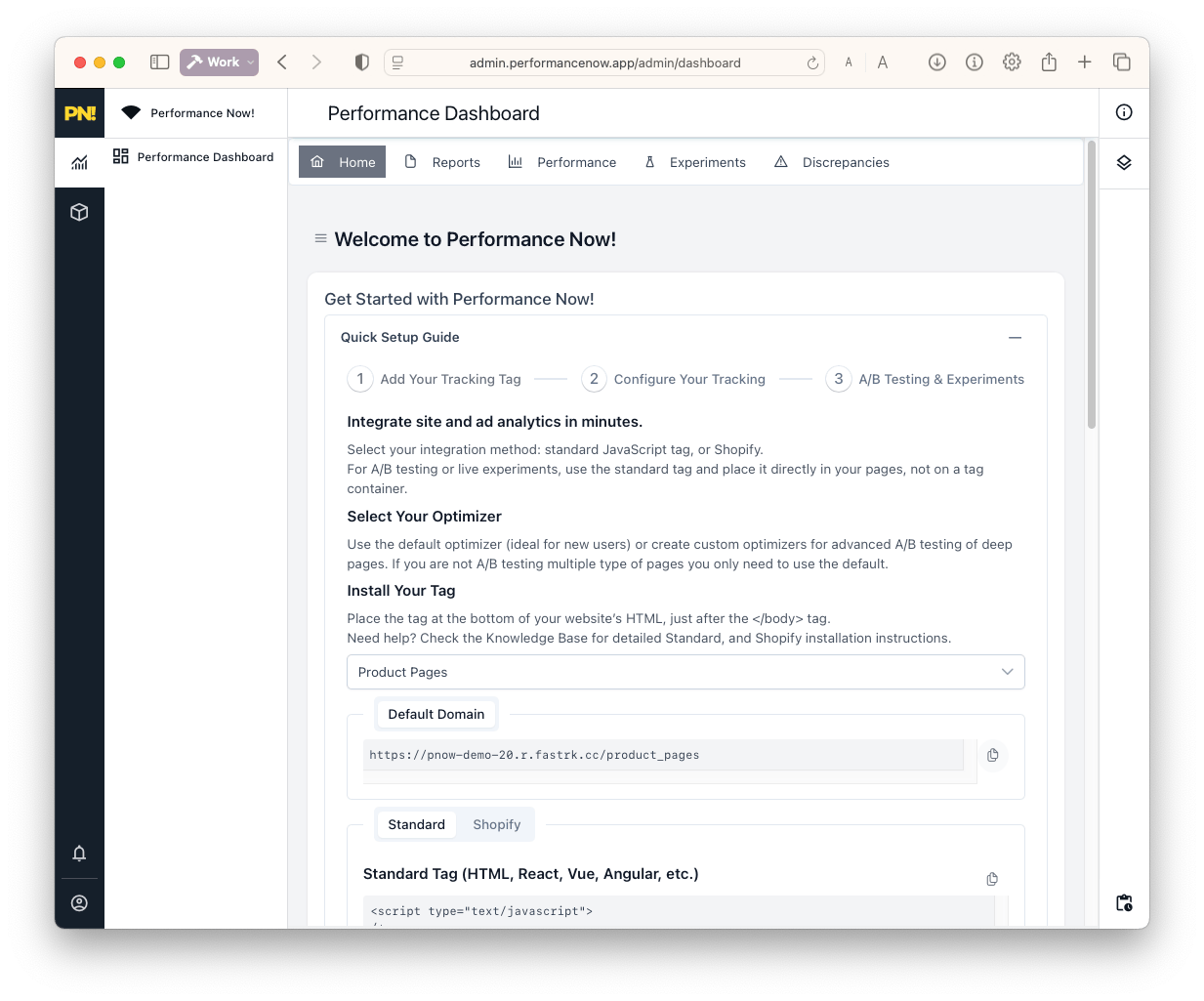
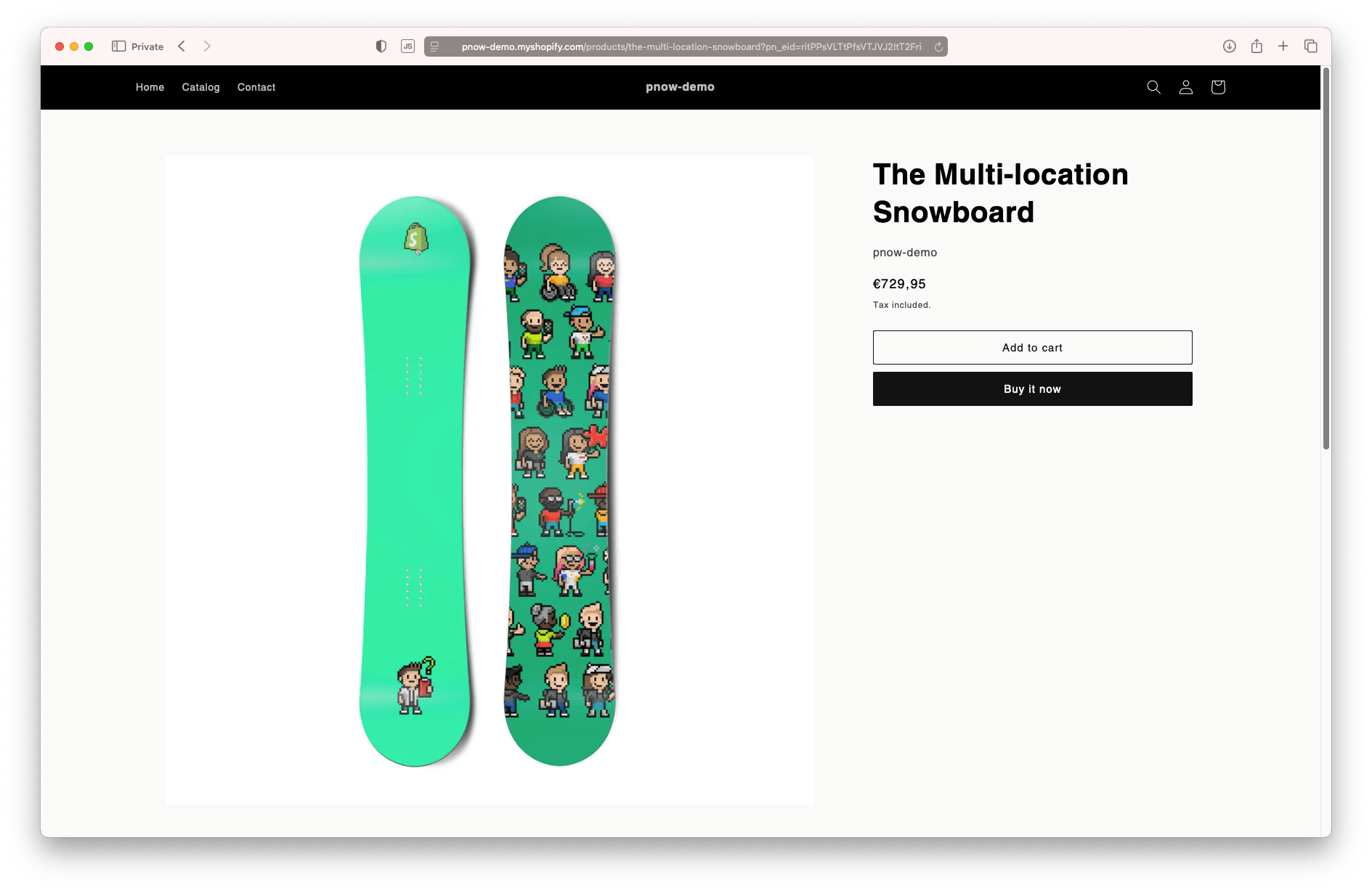
- Paste the command in your browser or campaign. You’ll be randomly sent to one of your product pages. Look for an experiment parameter in the URL.
Tip: If you see a captcha, it’s likely due to VPN, private relay, or anti-bot settings. 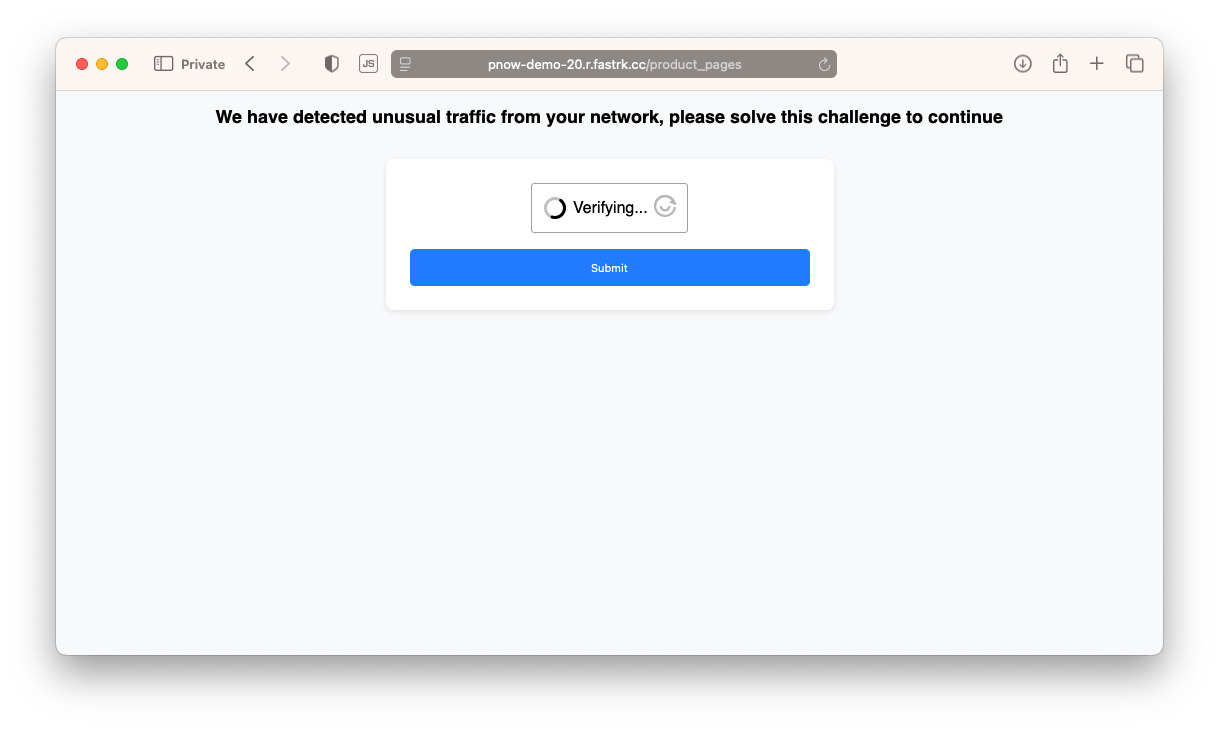
You can fine-tune this in the next step.